7 Self-Checkout Details Regular Shoppers May Overlook
Self-checkout can be convenient, but the process varies considerably from one retailer and machine to another. Produce may require weighing or a lookup, age-restricted purchases can trigger an employee check, and some systems use cameras or other technology to identify items and catch scanning errors. Here are seven practical things to know that can help make your next self-checkout trip
Some Items May Require Extra Steps

Not every item moves through self-checkout in exactly the same way. Produce sold by weight, items without conventional barcodes, gift cards, lottery products, and age-restricted merchandise may require additional steps or employee assistance, depending on the store. Some newer systems can recognize produce automatically, so the old assumption that every loose item must be manually searched for is no longer universally true. If your cart contains several items requiring special handling, a staffed register may sometimes be the simpler choice.
The Bagging Area Can Detect Changes in Weight
Many self-checkout machines use a scale in the bagging area to compare what has been scanned with what has been placed there. That means moving items around, placing personal belongings in the area, or removing something before the system is ready can trigger a warning. The exact sensitivity and procedures vary by machine, so follow the instructions displayed on the screen. If an alert appears, stop and ask the attendant rather than repeatedly trying to work around it.
Follow the Screen Before Moving Items

The order in which you scan, bag, and move products can matter because self-checkout systems track the transaction as you go. Newer systems are increasingly designed to recognize both intentional and accidental scanning mistakes, including items that are not scanned correctly. Rather than trying to predict what the machine wants, follow the prompts on the screen and wait for the next step. If the machine pauses or asks for assistance, an attendant can usually clear the issue quickly.
Make the Barcode Easy for the Scanner to Find
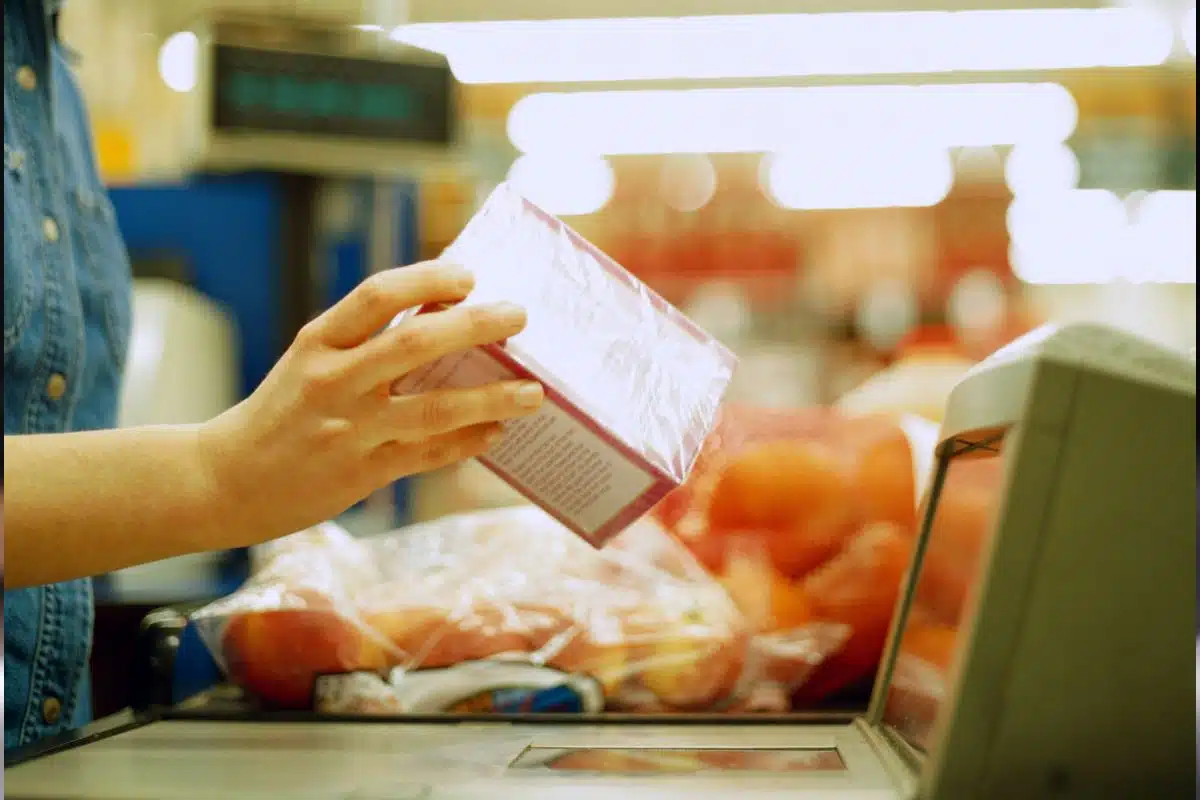
A barcode that is facing the scanner is generally easier to scan than one hidden around the side or bottom of a package. Hold the item so the barcode passes cleanly over the scanner rather than repeatedly moving it back and forth. If the package has more than one barcode, use the one identified by the checkout system or ask an attendant if you are unsure. And if an item refuses to scan, don’t keep scanning it repeatedly because you could accidentally register it more than once.
Produce May Require a Scale or Item Lookup
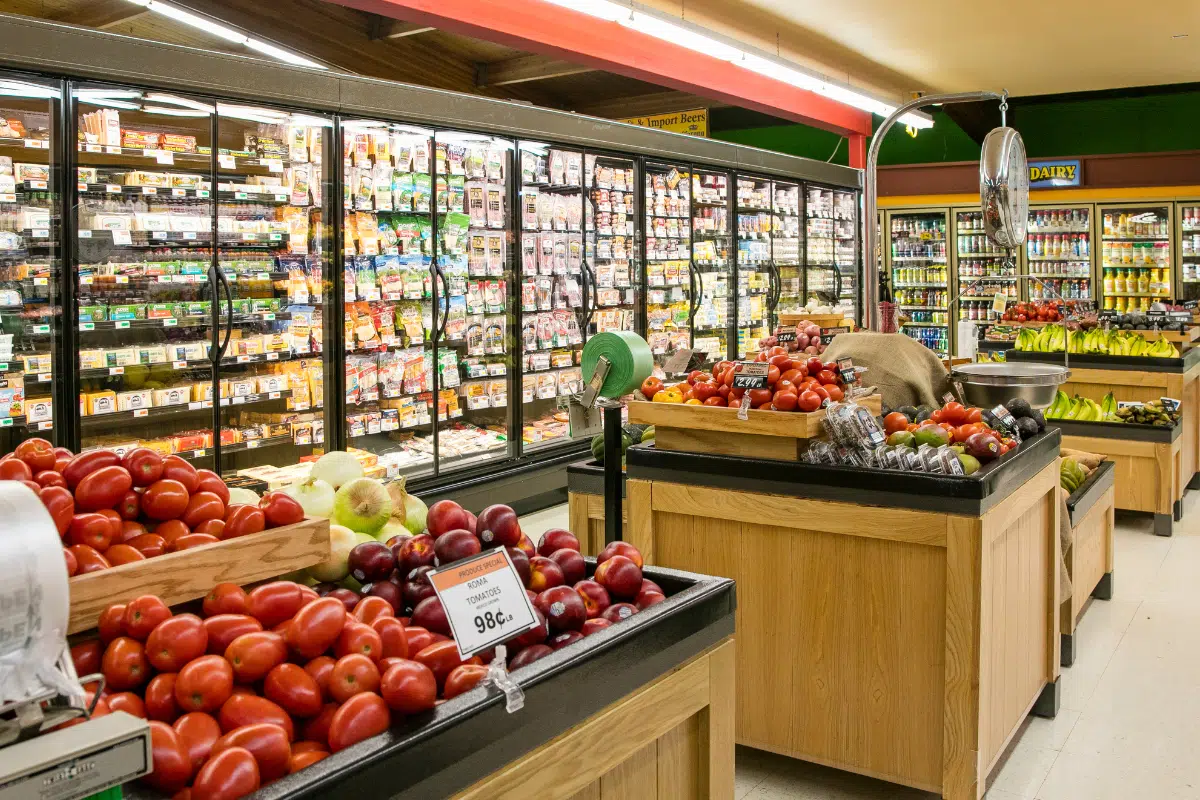
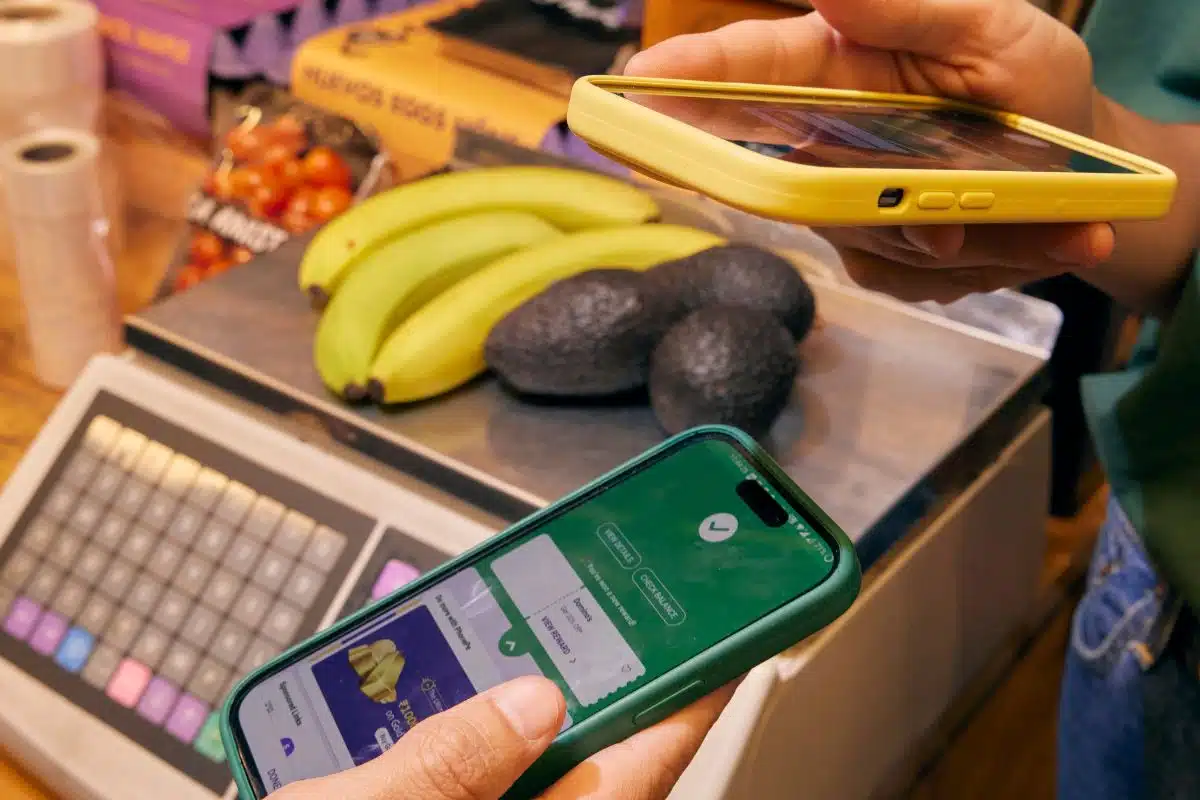
Loose produce is handled differently depending on the retailer and checkout technology. Some systems ask shoppers to place the produce on a scale and select the correct item, while newer systems can use cameras to recognize certain fruits and vegetables automatically. Packaged produce with a barcode is usually more straightforward, but the checkout screen should tell you what information is required. If you’re unsure about the variety or price, asking the attendant is better than guessing.
Check Your Receipt Before You Leave
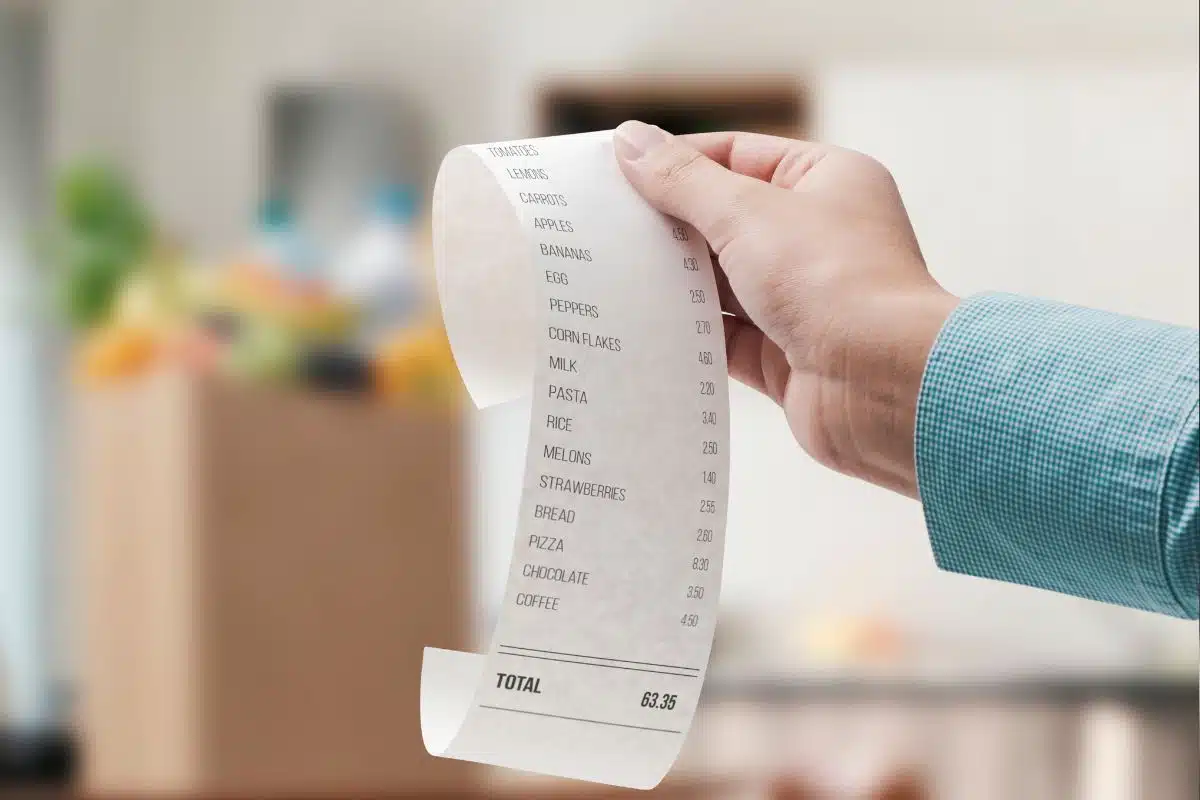
A quick glance at your receipt can help you catch an obvious duplicate scan, incorrect quantity, or price that did not match what you expected. Some retailers also conduct receipt or item checks after self-checkout, and their policies differ by store. If something looks wrong, it’s generally easier to address the problem while you’re still at the store than trying to reconstruct the transaction later. Keep your receipt, whether it is printed or digital, until you’ve had a chance to check the purchase.
Don’t Hesitate to Ask the Attendant for Help
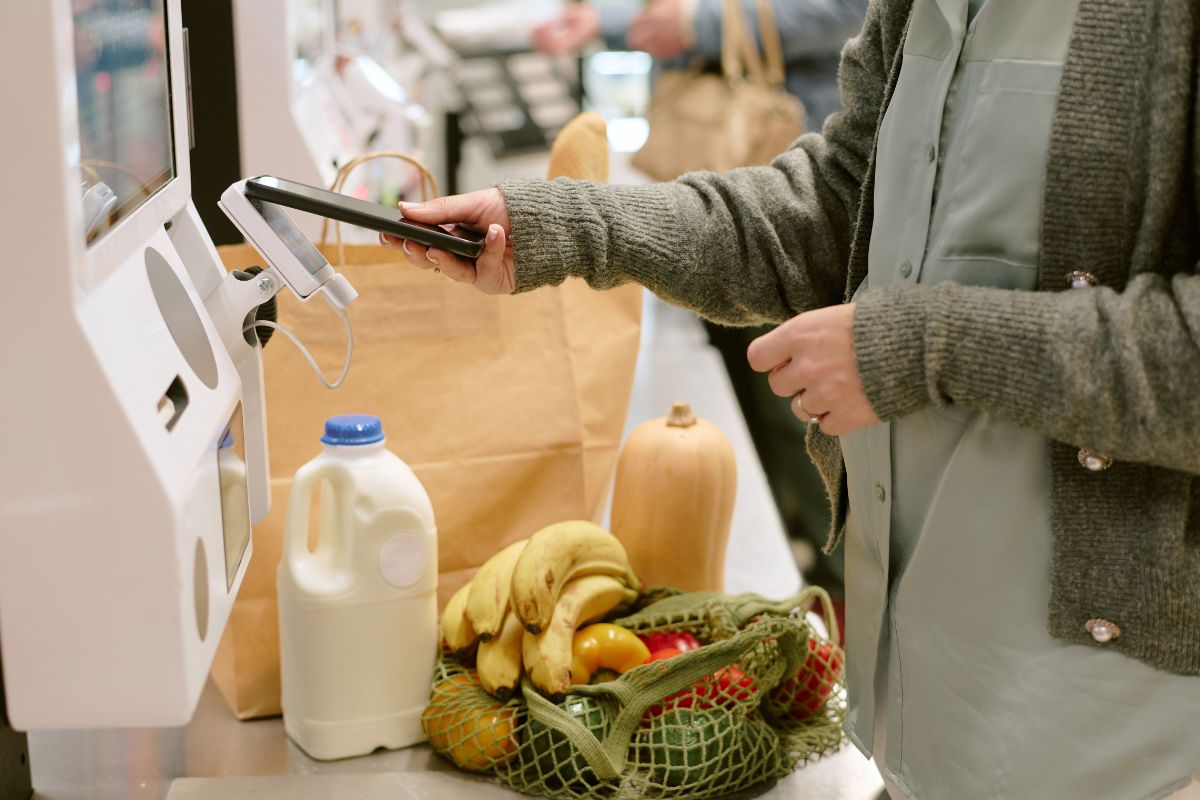
Self-checkout attendants are there to assist when the machine cannot complete the next step or when an item requires approval. That might include an age verification, a produce question, a payment problem, or a system error. Self-checkout technology is becoming more sophisticated, but retailers still use employee assistance for situations their particular system cannot handle automatically. Rather than repeatedly tapping the screen or restarting the transaction, simply get the attendant’s attention and let them resolve the issue.
This post may contain affiliate links or sponsored content. Disclosure Policy